About
The Dynamic Island for Windows. A small black island at the top of the screen shows what's playing, what you copied, your timers, your devices and the coding agents waiting on you, and lets you act on them without leaving the window you're in. Clipboard history (Win+Alt+V), a drag-and-drop shelf, volume and brightness pop-ups, Bluetooth batteries, mic/camera/screen indicators, call controls, system stats, and cards for Claude Code, Codex and OpenCode. A native Rust app that follows Windows' own events and draws nothing while nothing moves; installs without admin rights.
Documentation

ReUI
The Dynamic Island for Windows.


ReUI puts a small black island at the top of your screen. It shows what's playing, what you copied, your timers, your devices and the coding agents waiting on you, and lets you act on them without leaving the window you're in. Rest the pointer on it to peek, click to open, scroll to step through everything that's going on. Everywhere outside its own shape it lets clicks through, including the strip above it at the very top of the screen, where a maximised browser keeps its tabs.
It's a native Windows app written in Rust, and it sits idle until something happens: it follows Windows' own events and draws nothing while nothing moves.
What it does
Now Playing

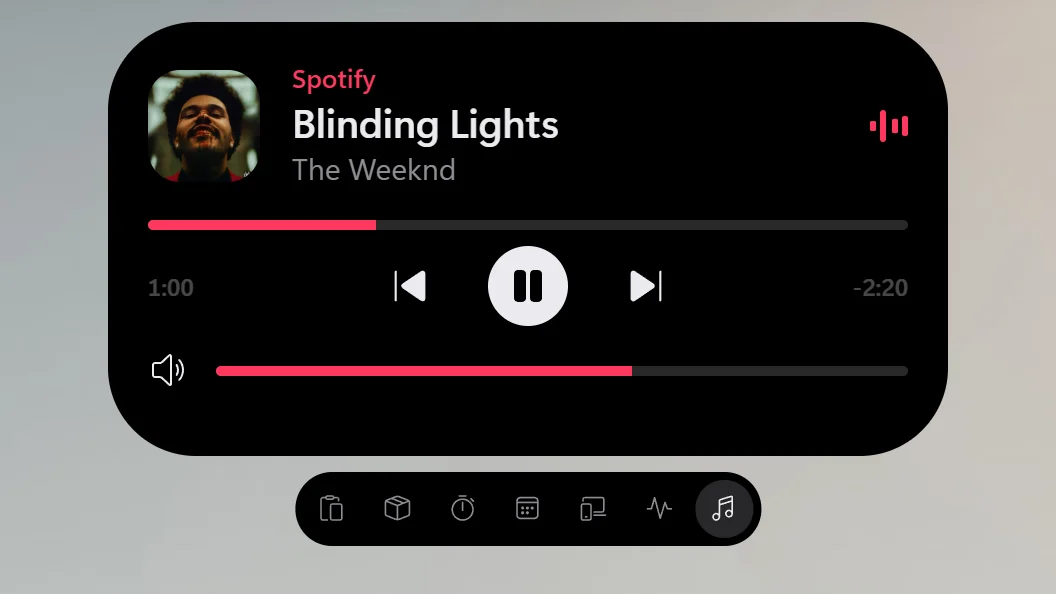
Whatever plays on your PC shows in the pill: Spotify, a browser, VLC, Media Player, anything in Windows' media controls. Open it for the artwork, a timeline you can scrub, the player's own controls and the volume. Swipe sideways on the pill to skip a track. Synced lyrics are there when you turn them on.
Clipboard history

Win+Alt+V brings back everything you copied: text with its formatting, images, files, links with their page's title, colours, code. Type to search, press Enter to paste into the app you were in, or Alt+1 to Alt+9 to paste one of the first nine. Pin what you want to keep. Copies from password managers and anything that looks like a password, key or token are never saved, and the history is kept only on your PC.
Shelf
Drag files, an image, a link or some text to the top of the screen and the island holds them. Collect things from different folders and apps, then drag them back out into a mail, a chat or an upload page, one at a time or all at once. Or send them from Explorer's right-click menu: Send to → ReUI shelf. Files never move: the shelf only remembers where they are, and nothing leaves your PC.
Volume and brightness

The volume and brightness keys show their level in the island, and ReUI can replace Windows' own pop-up. Drag or scroll to change the level, click the icon to mute, switch the output device from its menu. The mixer button lists every app that's playing under it, each with its own level; click an app's icon to mute just that app. Caps Lock, Num Lock, battery saver and microphone mute can show there too.
Devices

Bluetooth devices show their battery when they connect. Your PC and its devices warn at 20 % and 10 %, plugging in shows the time to full, and USB drives and memory cards come with Eject.
Mic, camera and screen
The moment an app starts using your microphone or camera, or recording your screen, its icon and a coloured dot appear in the island: orange for the mic, green for the camera, purple for the screen. Open it to see every app and since when, and mute the microphone in one click. Settings → Mic & camera.
Calls
A call in Teams, Zoom, Discord, Slack, Webex, WhatsApp, Telegram or Signal shows in the island with its running time. Open it to mute your microphone or bring the call's window back. ReUI sees the call because the app is holding your microphone, so it works in every app with no plug-in or sign-in. The mute is the microphone's own: nothing reaches the call, even if the app still shows you unmuted. Calls in a browser count if you turn that on.
System stats

Press Win+Alt+S to see how busy your PC is: CPU and memory with their last minute, then GPU, disk and network, live. A number that stays over 90 % turns orange, and the button at the top right opens Task Manager. It reads them only while the card is open, so it costs nothing the rest of the time.
Downloads and screenshots
A download from your browser shows in the island while it arrives, with its size and speed, then Open and Show in folder when it's done. Chrome, Edge, Firefox, Opera and Brave all work, and you can add the folders they save to. Take a screenshot with Win+Shift+S or PrtScn and its thumbnail appears with the same buttons, saying when it's already on the clipboard. Settings → Downloads & screenshots.
Timers and focus

Press Win+Ctrl+T and type how long: 10, 90s, 1h30, 10m tea. Run several at once; they keep going through sleep and restarts, and when one ends the island opens with a sound: Stop, or +1 min. Type focus for focus sessions (25 minutes of work, 5-minute breaks) that can turn on Do Not Disturb while you work, or sw for a stopwatch with laps.
The same field takes reminders: call mom at 6, in 2h check build, tomorrow 9 dentist, every day 21:00 meds. It shows when one will fire before you press Enter, and at that time the island opens on it: Snooze, or Done. They survive sleep and restarts, and one that came due while the PC slept says so.
Scripts
A build, a backup or winget upgrade can show its progress in the island with one line: reui-bridge activity build --title Build --progress 0.42, then --state done. A ring and the percentage sit in the pill while it runs, and the result shows for a moment when it ends. Scripts send text and a number, nothing more; see Scripts.
Calendar (Beta)
Your next meeting comes to the island in its last ten minutes, a ring counting down beside its title. When it starts, the island says so, and Join opens the Teams, Zoom, Meet or Webex link found in the invitation, wherever it hides. All-day, declined and cancelled events stay out of the way, and the Calendar view lists what's left of your day. Add your Google or Outlook calendar by its secret iCal address in Settings → Calendar: ReUI keeps it encrypted and asks only your calendar's own server. In beta: ReUI reads calendars only by these links, which are as fresh as Google or Outlook rebuild them (sometimes hours behind); signing in with your account is planned.
Coding agents

Claude Code, Codex and OpenCode show in the island only when they need you: a permission to allow or deny, a question, a plan or an MCP server's form, a turn that failed. Answer from the island and stay in your editor, or jump straight to the agent's terminal. Each card says which session is asking, shows the full command or the changed lines, and hides anything that looks like a secret. A card never takes your keyboard by itself, so a stray Enter can't allow anything. Connect an agent in Settings → Coding agents. Connect PowerShell or Git Bash there too, and a build or test run that took more than 10 seconds tells you when it's done or failed, if you've moved to another window.
Out of your way
You decide how the island behaves. Open it with a click, or by resting the pointer on it, and choose how long that rest is. Keep it hidden until something needs you, and choose how much of the top edge brings it back, or none. Give an app its own rule: hide the island while a game or a presentation is in front, or let only permission requests through while you record. Right-click a moment you don't need (a copy, the volume, a device connecting) to turn that kind off or snooze it for an hour. Permission requests always come through. Share your screen and the people watching don't see your clipboard, an agent's request or a notification on the island; you still do. Win+Alt+N opens whatever is waiting with the keyboard on it, and Esc puts you back where you were typing. When Windows Update is waiting to restart, the island tells you before it does, with Restart now and Schedule.
Appearance


Dark, light, or following Windows' own mode. Island floats just below the top edge; Notch joins it to the edge like a laptop's notch. Roundness, padding, size and the accent (ReUI blue or your Windows accent) are yours to set, and the island picks up a change at once.
Every feature, shortcut and gesture is in the guide.
Performance
What ReUI's two programs use, measured with the release build:
| Hub | Island | |
|---|---|---|
| At rest, nothing happening | 0.00 % CPU · 2 MB | 0.00 % CPU · 57 MB |
| Music playing, card closed | 0.00 % CPU · 4–5 MB | 0.04–0.05 % CPU · 61–63 MB |
| System stats card open | 0.02–0.03 % CPU · 7 MB | 0.01–0.04 % CPU · 62 MB |
CPU is the share of the whole machine; memory is private memory. Three runs of 60 s per scene (50 s with the stats card) on October 30, 2026: AMD Ryzen 5 5600 (6 cores, 12 threads), Windows 11 build 26200, one 1920 × 1080 display at 100 %. The machine was busy with other work during the runs (about 80 %), so these are ReUI's numbers under load. Not included: Windows' compositor drawing the island, and the music player itself (the music here is ReUI's demo track, with the live bars). Most of the island's memory is its graphics device and fonts. tools/perf-sample.ps1 repeats the measurement.
Install
- Download
ReUI-Setup-<version>.exefrom the Releases page. - Run it. It installs for your user only, so no admin rights are needed, adds ReUI to the Start menu, starts it with Windows and opens it.
- Releases aren't code-signed yet, so Windows SmartScreen may say "Windows protected your PC". Choose More info, then Run anyway.
Running a newer setup upgrades in place and keeps your settings and clipboard history. Settings opens from the tray icon, or by launching ReUI again from the Start menu. Prefer no installer? ReUI-<version>-x64.zip on the same page holds the same programs.
Updates
ReUI checks GitHub for a new version once a day. When one is out, the island says so: Install downloads it, checks it against the release's checksums, installs it and restarts ReUI; Later puts it off for a day. After an update, Settings → About shows what changed. Turn the check off in Settings → About.
Privacy
Your clipboard history, settings and logs stay on your PC. There's no account and no telemetry. ReUI goes online for three things only:
- Link previews: the title and image of links you copy, from public sites only. Turn them off in Settings → Clipboard.
- Update check: once a day, to GitHub. Nothing about you is sent. Turn it off in Settings → About.
- Synced lyrics: off until you turn them on; then the song's title, artist and album go to lrclib.net.
- Calendar: only once you add a calendar's link; then ReUI asks that calendar's own server for it every 15 minutes. The link and the copy kept for offline use are encrypted for your Windows account.
Settings → Privacy & data lists all of it and opens the folders.
Uninstall
Settings → Apps → Installed apps → ReUI → Uninstall. It stops ReUI, puts back Windows' volume pop-up if ReUI was replacing it, removes the coding-agent hooks it installed, starting with Windows and the Start menu entry, then asks whether to delete your data too.
Requirements
- Windows 11, or Windows 10 version 2004 or later
- 64-bit (x64)
More
- Guide: every feature, shortcut and gesture
- Building from source: build, flags, files on disk, the coding-agent hooks
- Changelog
License
Free and open source, under either the MIT License or the Apache License 2.0, at your option.
The pictures in this README are taken from the website's island (site/, npm run readme-images) on a background from Super Visuals (CC BY 4.0). Product names and logos belong to their owners.